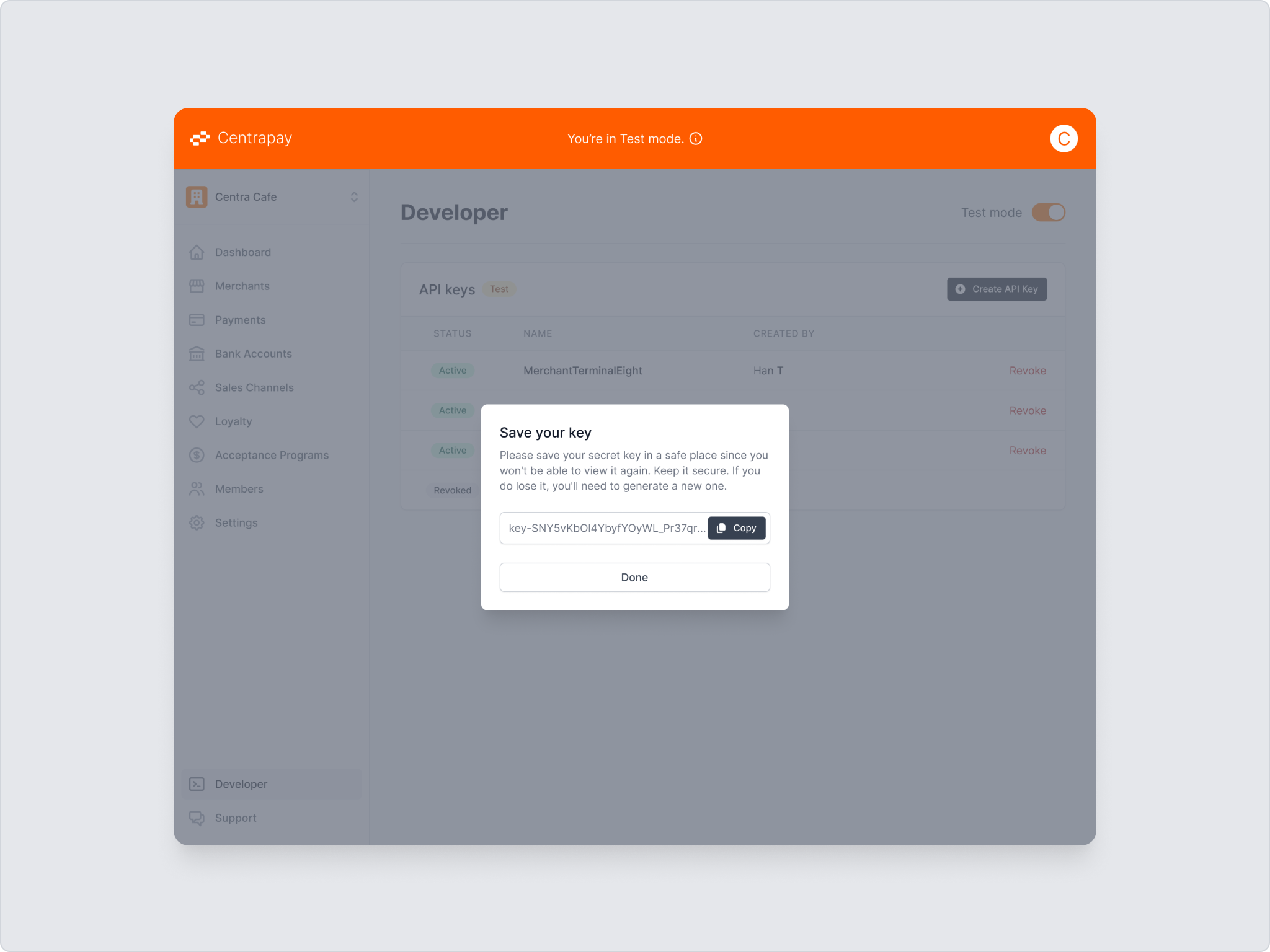
The key is shown in full only once, at the moment it is created. Save it somewhere secure straight away.
Guides
Getting Started
This guide walks you through setting up a Centrapay account, enabling test mode, and creating the API keys your integration needs.
For more help getting setup, contact us via email at integrations@centrapay.com.
1. Create an Account and a Business
Go to the Centrapay Business Portal and create a Centrapay account. When you first sign in, follow the prompts to create your business.
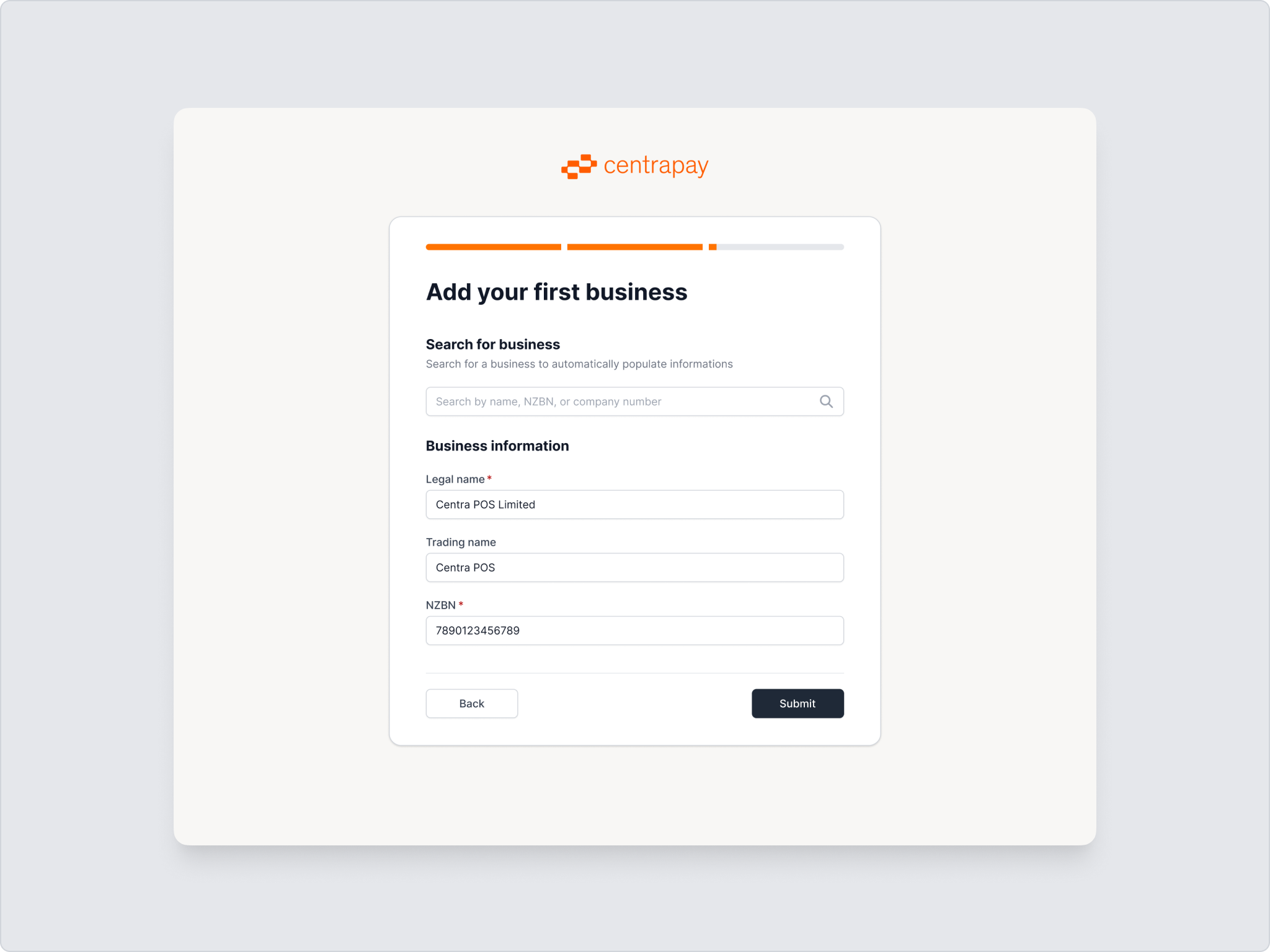
Once created, you are taken into the Business Portal.
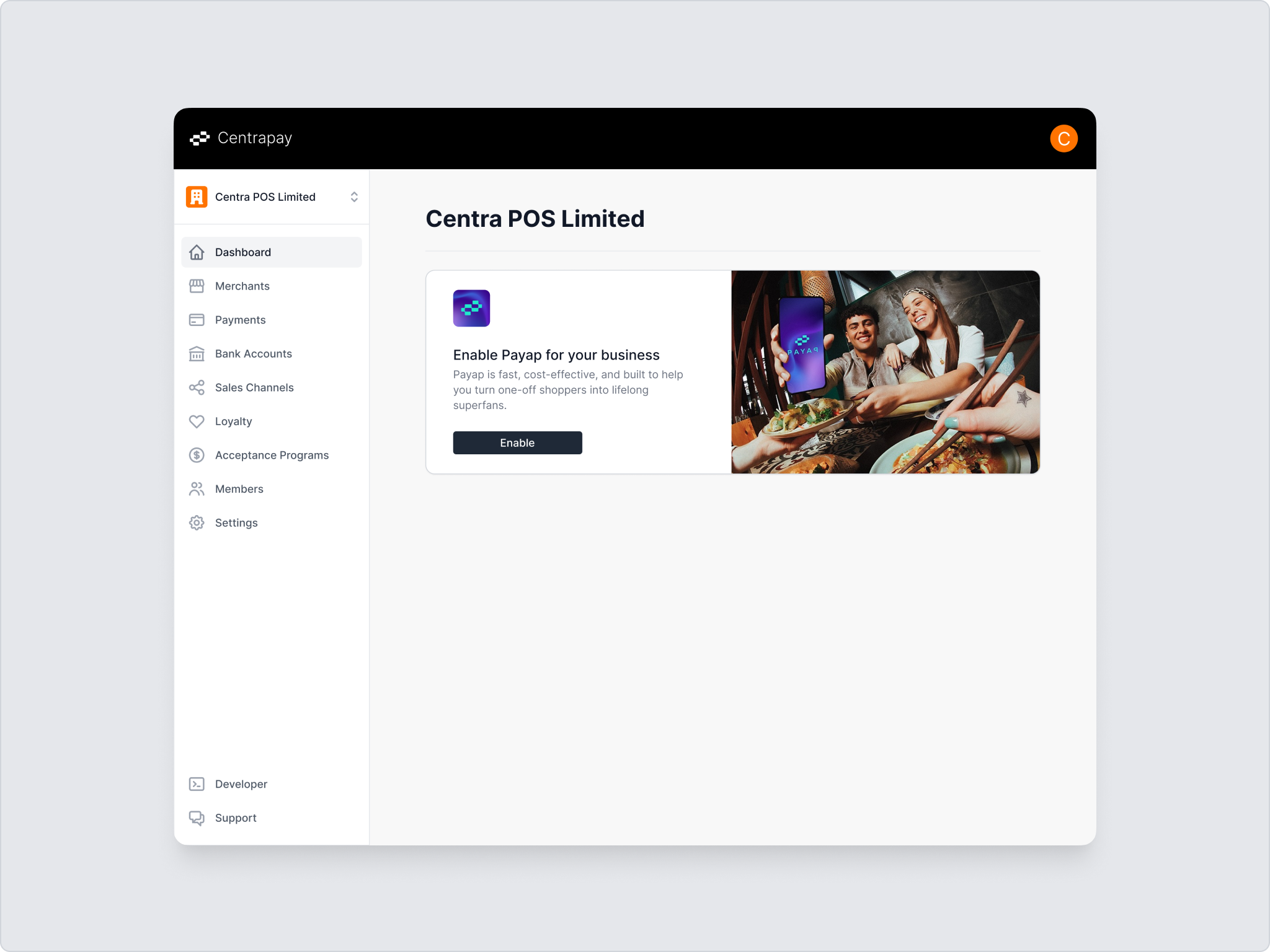
2. Open the Developer Section
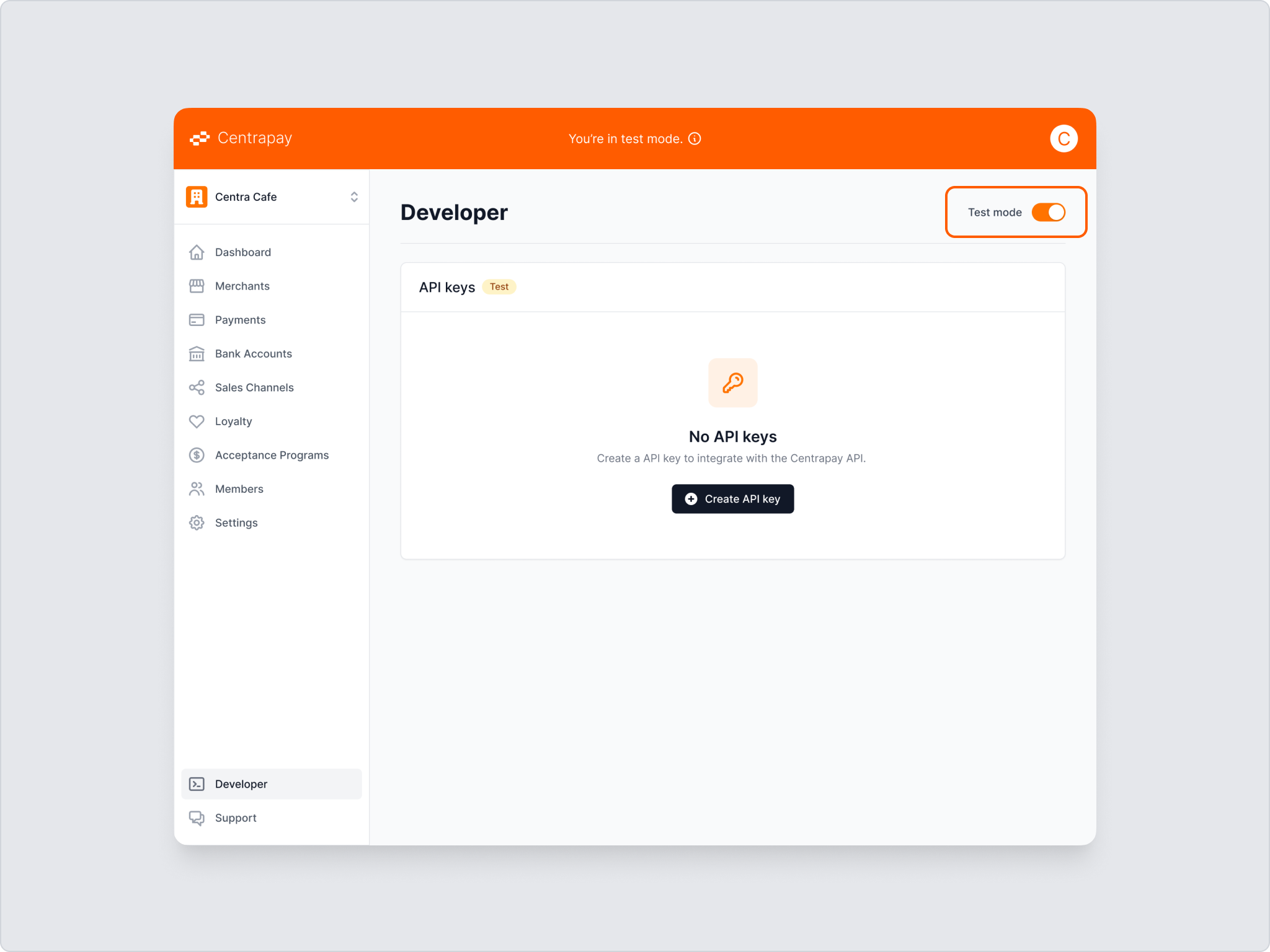
Select Developer at the bottom of the sidebar. From here you can turn test mode on and off, and create and manage API keys.
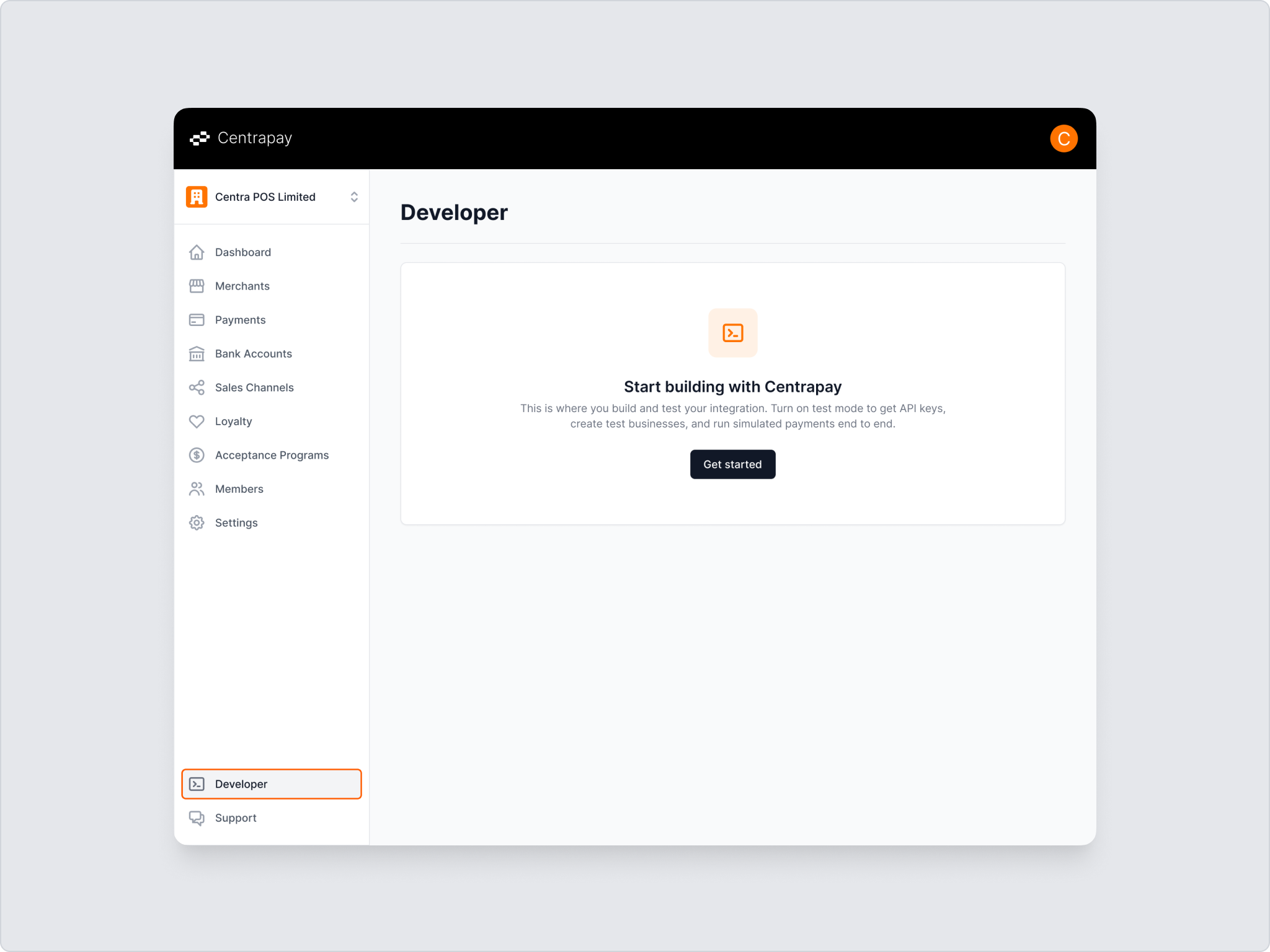
3. Enable Test Mode
The first time you open the Developer section, select Get started, then confirm Start in test mode. Centrapay automatically creates the test account, the test business, and the test account membership.
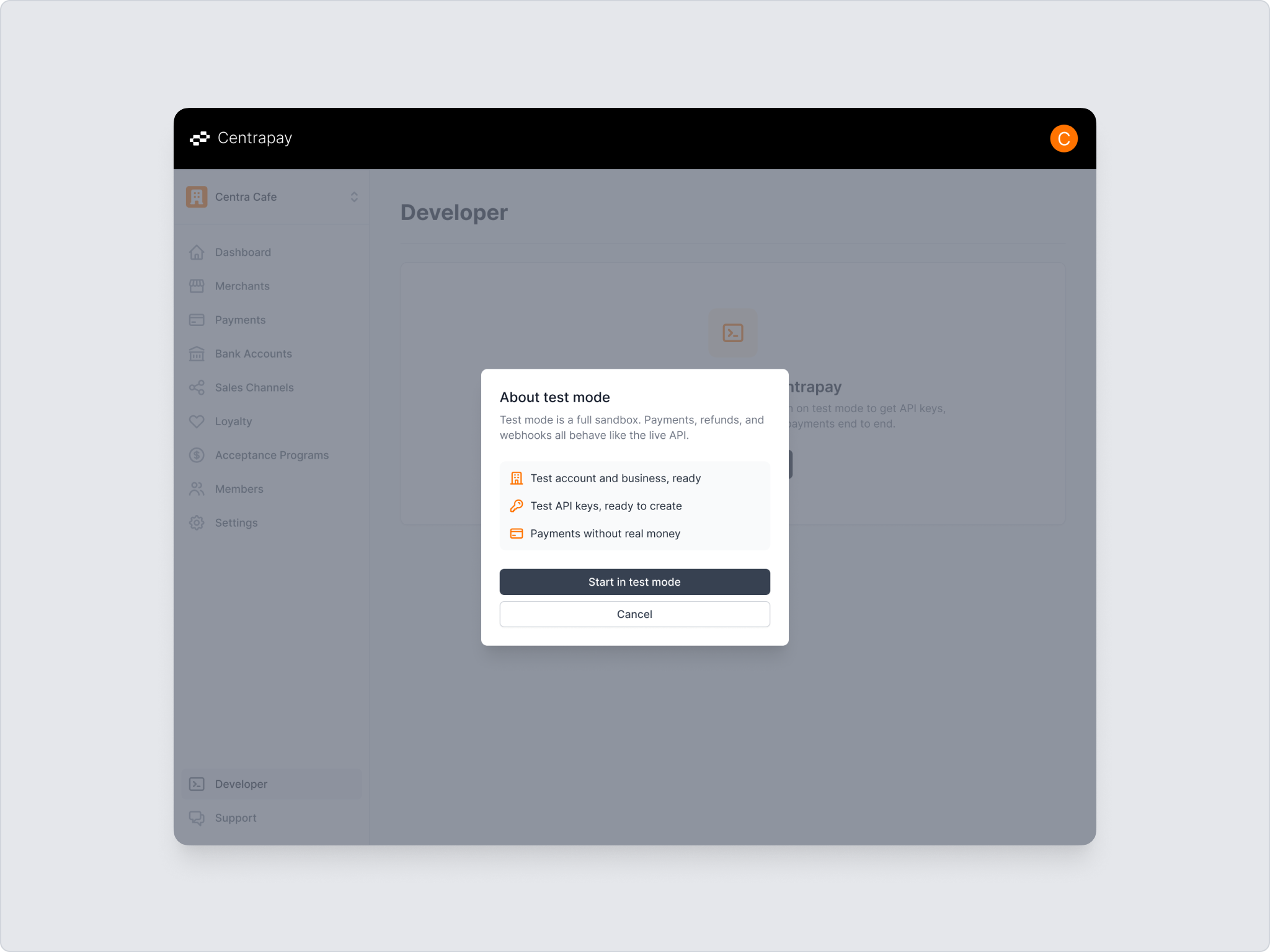
Test mode data is fully isolated from the production environment and no real funds are moved. You can switch between test mode and live mode at any time using the toggle in the Developer section.
4. Create an API Key
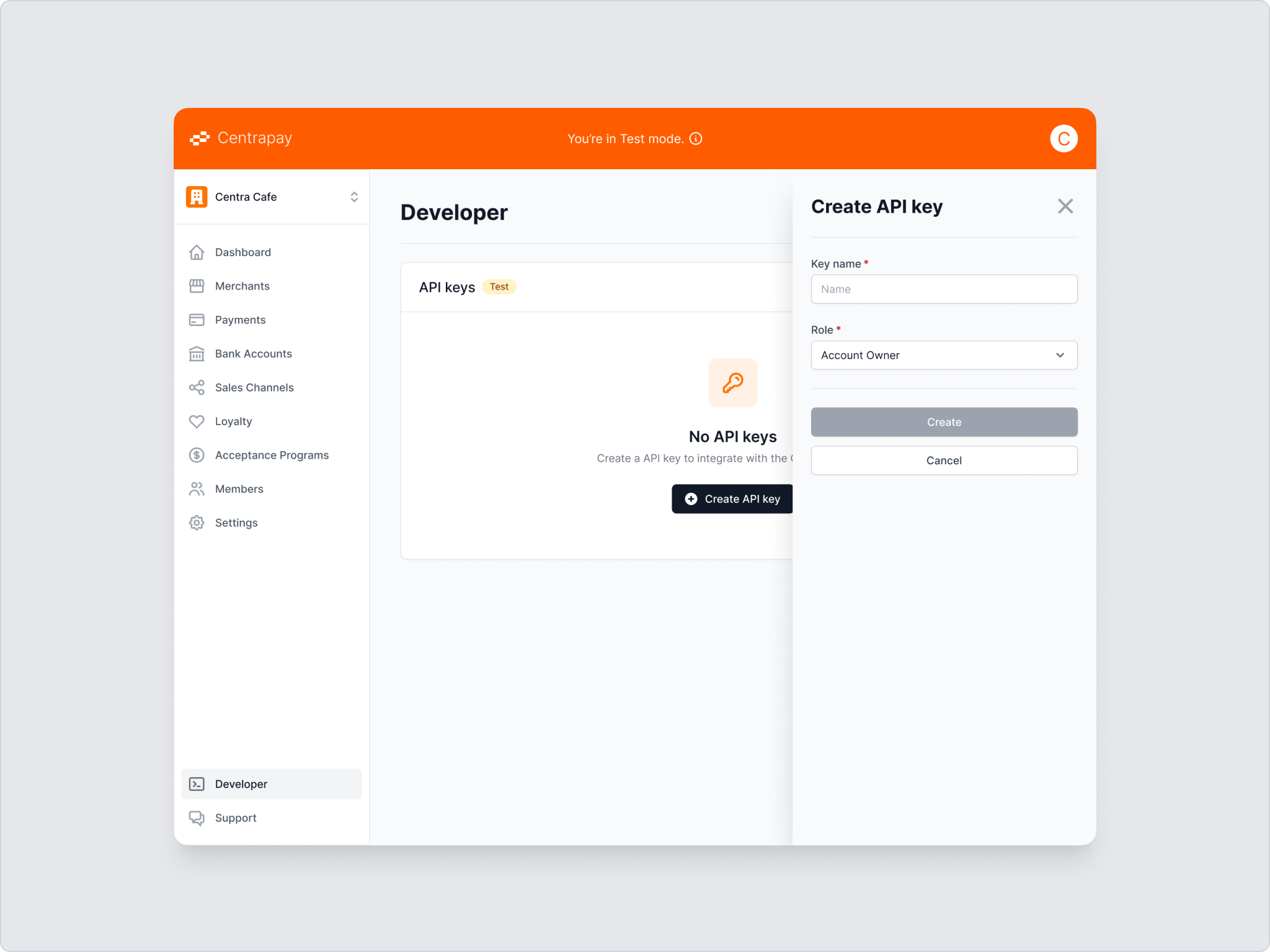
In test mode, select Create API key to create a test key and choose the role you need. Keys created in test mode can only access test resources and cannot be used in production.
5. Revoke an API Key
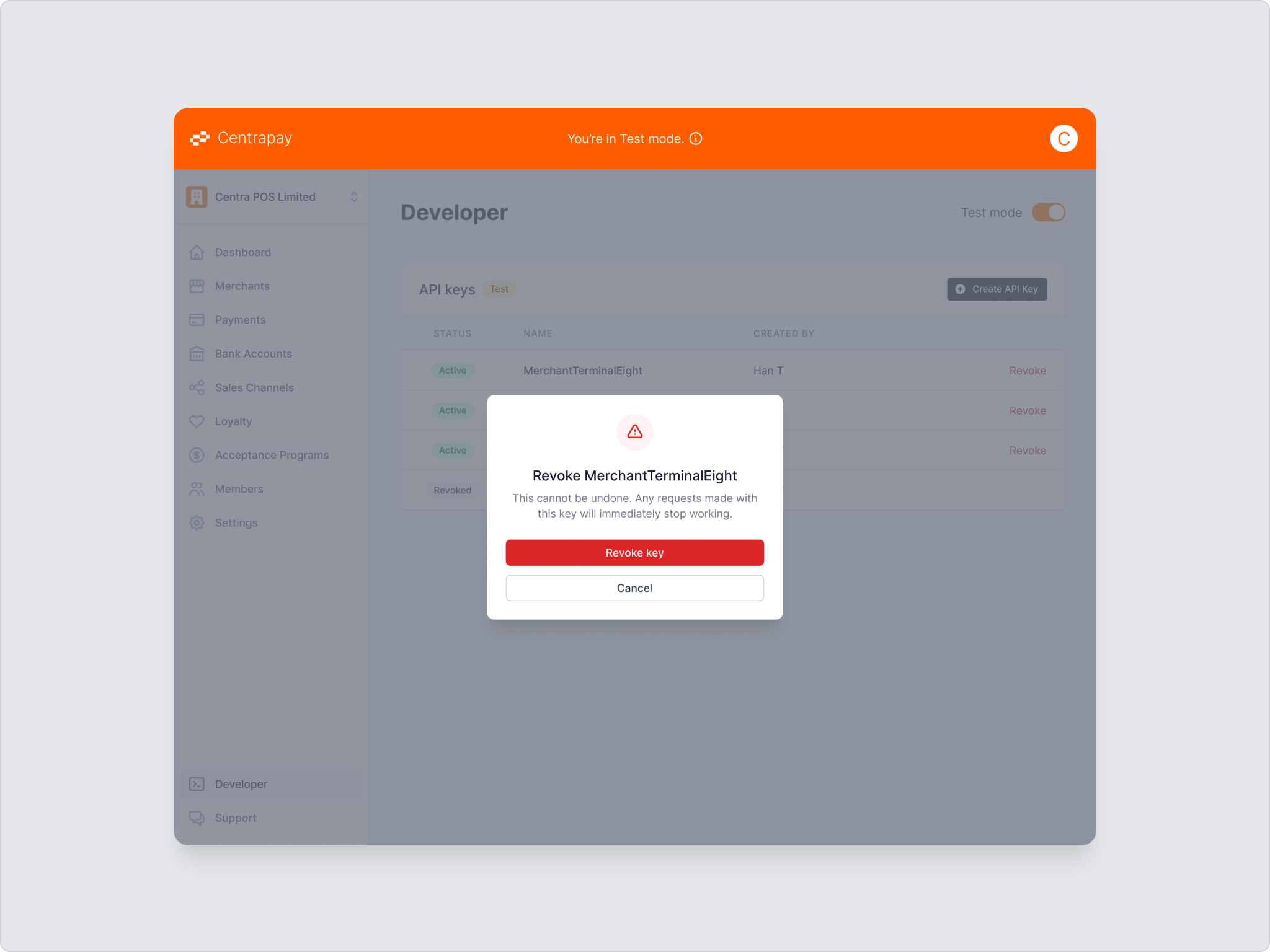
Revoke a key promptly if it has been exposed, if someone leaves your team, or if it is no longer in use. Find the key in the API Keys list and select Revoke.
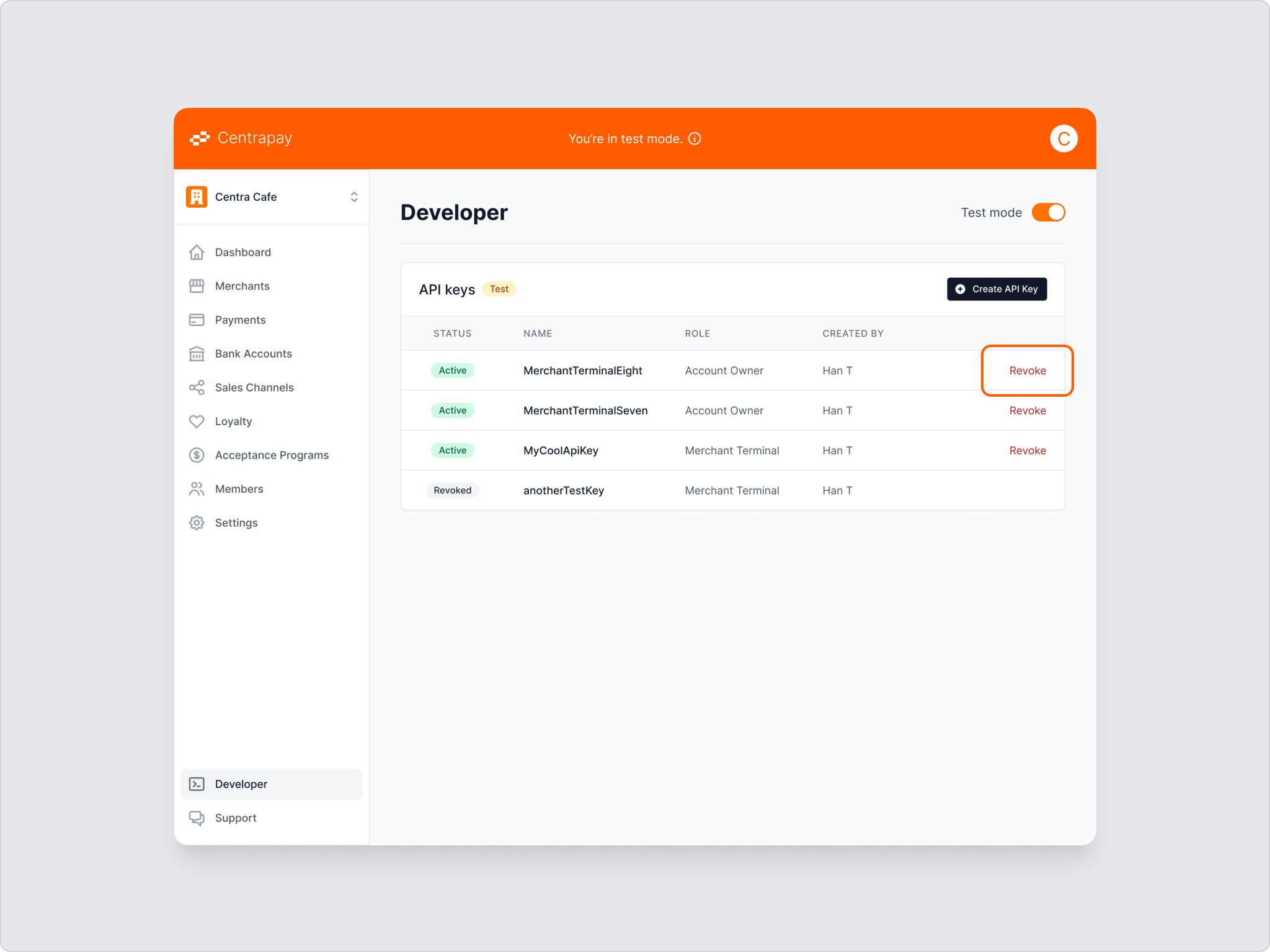
Revoking takes effect immediately and cannot be undone.
6. Build Your Integration
With your test environment ready, implement the core payment flow for your channel:
| Type | Best For |
|---|---|
| Payment Terminal | Hardware terminals managed by an integrator on behalf of multiple merchants. |
| Point of Sale | POS software integrated directly into a merchant's existing system. |
| E-commerce | Online checkouts using redirect or popup payment flows. |
Implement both ways of connecting with a patron, so that you support the widest possible range of patron apps and assets:
Related API references: Payment Requests, Merchant Configs, and Asset Types.
Also review the protocol extensions and add any that your integration requires.
Follow Testing Payments to create test money so you can pay your test Payment Requests.
7. Integration Checklist
Before going live, work through the Integration Checklist to confirm your integration is complete.
8. Contact Us to Go Live
Once your integration is complete, get in touch at integrations@centrapay.com. Centrapay will provide a certification checklist before you go live.